
Xbox Cloud Gaming: Supported Devices and Setup Guide
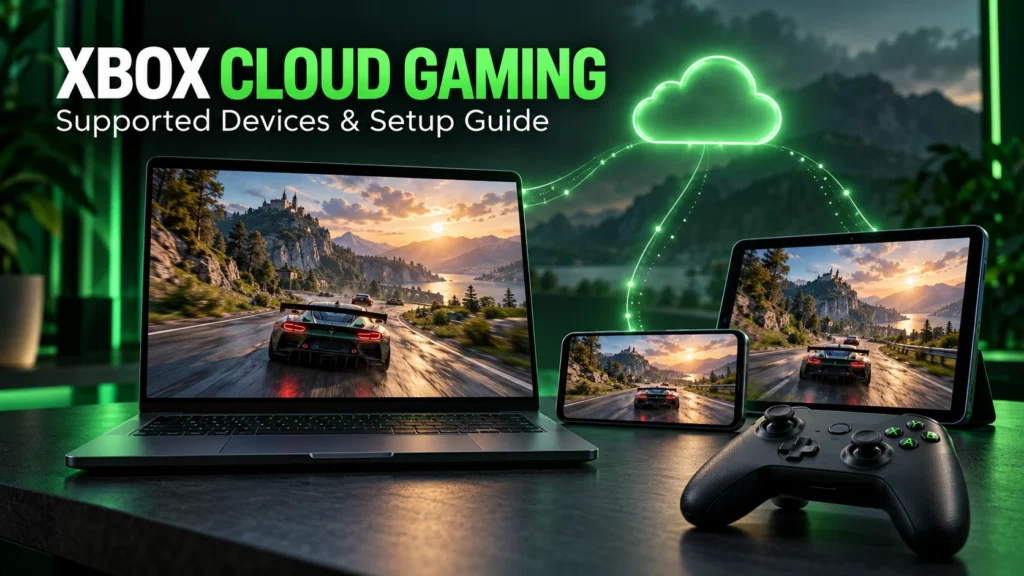
Want to play an Xbox game on your laptop without downloading it first? Or use a tablet when someone else is watching the TV? Xbox Cloud Gaming gives you another way to play without buying a console for every screen.
The idea is straightforward: choose a supported game, connect a compatible controller and stream it over the internet. Getting a good experience takes a little more thought, especially when it comes to your connection, device and subscription.
This guide explains how to use Xbox Cloud Gaming, what to check before paying and how to deal with common setup problems.
What Is Xbox Cloud Gaming?
Xbox Cloud Gaming lets you stream supported games over the internet. The game runs on remote hardware, while your device displays the gameplay and sends back your controller inputs.
You do not need to install the streamed game locally. You do need a reliable internet connection throughout the session.
For someone with limited storage or a computer that struggles with demanding games, streaming is worth considering. However, the quality of the experience depends on the connection between your device and the service.
Xbox Cloud Gaming Requirements
Before starting, check these five things:
-
Your country or region supports the service.
-
Your device and browser are compatible.
-
The game you want is available for cloud play.
-
You have the required account access and playtime.
-
Your controller or chosen input method works with that game.
Do these checks before subscribing specifically for one title. A game being available to buy does not automatically make it available to stream.
How Fast Should Your Internet Be?
Xbox lists connection guidance of 10 Mbps for mobile devices and 20 Mbps for PCs, consoles and tablets. It also recommends a 5 GHz Wi-Fi connection. Performance varies with your location, device and network conditions.
Treat the speed test as a starting point. Run it on the device you plan to use, in the room where you usually play.
Then try a short session while your household is using the internet normally. A connection that works well when everyone else is offline may behave differently when several people are streaming video.
If possible, connect a computer or console through Ethernet. For wireless play, sit closer to the router and pause large downloads before testing.
Xbox Cloud Gaming Supported Devices
Xbox supports several types of screens, but compatibility varies by model and software version.
| Device type | Usual way to play |
|---|---|
| Windows PC | Supported browser or Xbox app |
| Mac or Chromebook | Supported browser |
| Android phone or tablet | Supported browser |
| iPhone or iPad | Supported browser |
| Xbox One or Xbox Series X|S | Console cloud gaming interface |
| Compatible smart TV or streaming device | Xbox app |
| Supported handheld or Meta Quest headset | Device-specific app or browser |
Xbox’s official getting-started guide covers these device families and their different setup routes. Check the linked device requirements for your exact model before buying accessories.
For a TV, check the model number rather than relying on the brand name. Two televisions from the same manufacturer can have different app support.
Game Pass and Monthly Cloud Playtime
There is a subscription change to consider when planning your Xbox Cloud Gaming setup.
Xbox announced monthly cloud gaming allowances beginning in November 2026:
| Game Pass plan | Included cloud playtime per month |
|---|---|
| Essential | 5 hours |
| Premium | 10 hours |
| Ultimate | 15 hours |
The announcement also describes purchasing additional cloud hours and a separate option to buy playtime for streaming eligible games you own without a Game Pass subscription. Availability and purchasing options can vary by market, so check the terms shown in your account.
Think about how often you actually plan to stream. Someone playing occasionally on a tablet has different needs from someone using cloud gaming every evening.
Compare the included hours alongside the game library. The cheapest plan is only useful if it includes access to what you want to play.
How to Use Xbox Cloud Gaming on PC
A browser is a convenient place to begin because you can test the service without setting up another application.
-
Update a supported browser.
-
Connect your compatible controller.
-
Visit Xbox.com/play.
-
Sign in to your Microsoft account.
-
Choose a game available to stream through your account.
-
Select the play option shown.
Xbox lists Microsoft Edge, Google Chrome and Safari among its supported browser options. Compatibility depends on the device you use.
Start with a short session. Check whether button presses feel responsive, text is readable and the picture stays consistent during movement.
If something feels wrong, change one thing at a time. For example, pause background downloads first, then test again before switching browsers.
How to Set Up Xbox Cloud Gaming on a Phone
The first decision is how you want to hold and control the game.
A controller with a phone mount can be more comfortable than balancing the screen on a desk. If you prefer touch controls, check whether your chosen game supports them before starting.
For browser access:
-
Connect the controller, if needed.
-
Open a supported mobile browser.
-
Go to Xbox.com/play and sign in.
-
Choose an eligible game.
-
Rotate the screen to landscape if that suits the game.
Xbox’s setup guide directs Android, iPhone and iPad users to browser-based streaming. It also explains that adding the page to your home screen can make it easier to reopen.
For your first attempt, use a familiar Wi-Fi connection. That makes it easier to separate a setup problem from an unreliable mobile signal.
Do You Need an Xbox Controller?
A compatible controller is the simplest starting point for many players. Selected games also offer touch controls or mouse and keyboard support, depending on the title and device.
Try a controller you already own before ordering another one. Check that your device recognises it and that it works with the cloud game you want to play.
If wireless inputs seem inconsistent, testing a supported wired connection can help you work out whether the issue comes from the controller connection or the stream.
Xbox Cloud Gaming Not Working? Start Here
Troubleshooting is easier when you identify the symptom first.
The game does not launch
Check that you are signed in to the intended account. Then confirm the title’s cloud availability and your account’s access or remaining playtime.
If multiple games fail, check Xbox service status before repeatedly changing your device settings.
The picture becomes blurry
Pause downloads and other heavy network activity, then test again near the router or through Ethernet.
If the picture improves, focus on your local connection before considering new hardware.
Controls feel delayed
Try another game to see whether the problem is consistent. Then test a different controller connection if your device supports it.
Avoid changing your router, browser and controller settings together. You will have a harder time identifying what helped.
The controller connects but does not respond
Close the session, reconnect the controller and relaunch the game. Check the controller’s compatibility if the problem continues.
Is Xbox Cloud Gaming Worth Trying?
It is worth considering if you want to play on an existing screen, save local storage or spend occasional time gaming away from your main setup.
Before committing, answer three questions:
-
Is the game I want available?
-
Does streaming work well on my usual connection?
-
Does the available playtime suit how often I play?
A short trial on your own device tells you more than a list of specifications. Start with the hardware you have, test under normal conditions and decide whether the experience is comfortable enough for regular use.
Frequently Asked Questions:
Ans. No. Supported computers, phones, tablets and certain other devices provide ways to access cloud gaming without owning a console.
Ans. Selected owned games support cloud streaming. Check the individual title’s eligibility and the access requirements shown for your account.
Ans. Some supported free-to-play games, including Fortnite, can be accessed with a free Microsoft account in supported regions. Other games require the relevant paid access.
Ans. No. Cloud gaming needs an active internet connection while you play.